Online guide

LW6 Wireless Studio Headphones

  • LW6 downloads

    Download the latest version of the HEADPHONES software here:

    Windows

    Mac 

    Android - Google Play Store

    iOS - Apple App Store 

    LEWITT HEADPHONES on Google Play Store
    Google Play Store
    LEWITT HEADPHONES on Apple App Store
    Apple App Store

    • LW6 setup video

      Video chapters:

      00:00 - LW6 Box contents
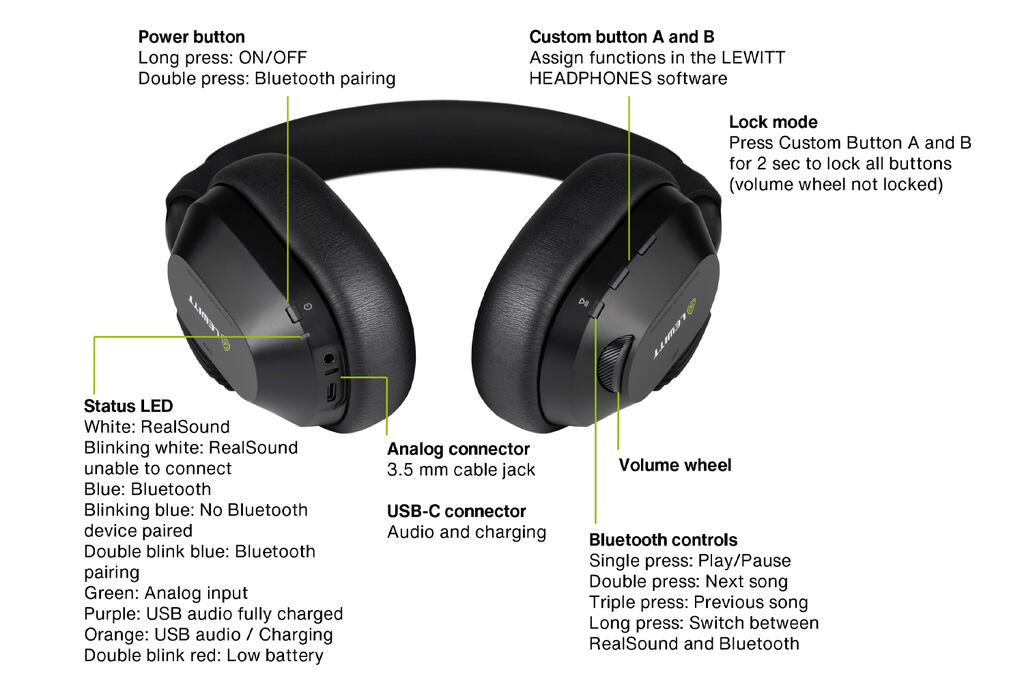
      00:25 - Headphones - user interface
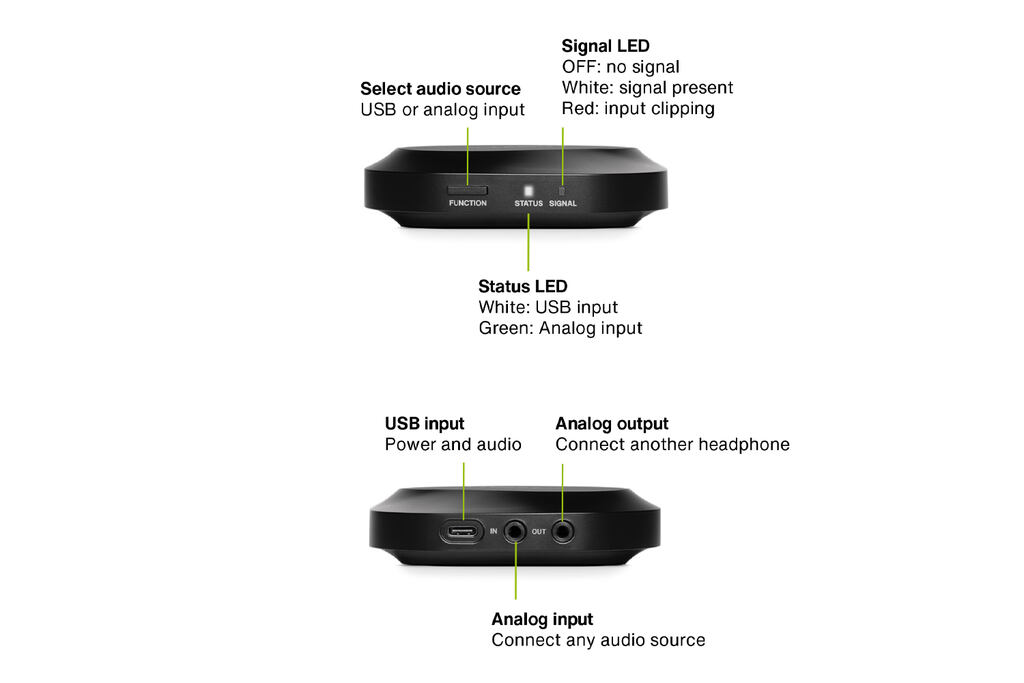
      00:53 - RealSound transmitter - user interface
      01:09 - RealSound setup via USB-C
      01:45 - RealSound setup via analog
      02:07 - Bluetooth Setup
      02:30 - Wired setup
      02:42 - Software and mobile app

    • LW6 user interface

      LEWITT LW TX RealSound Transmitter
      Transmitter

      LEWITT LW6 Headphones

      Headphones

    • LW6 connections overview

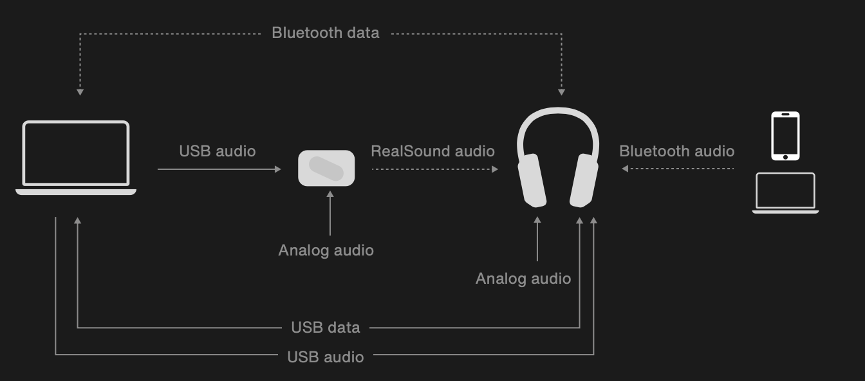
      LW6 connections overview

      LW6 Wireless Studio Headphones offer 4 audio connections methods:

      • RealSound Wireless Technology (LW TX transmitter needed)
      • Bluetooth
      • USB 
      • Analog 

      The active audio connection of the headphones is displayed in the “Headphone” section of the LEWITT HEADPHONES software.

      LW TX transmitter offers 2 audio connection methods:

      • USB
      • Analog

      The active audio connection of the transmitter is displayed in the “Transmitter” section of the LEWITT HEADPHONES software.

      All audio and data connections are present in the “Connections overview” section of the LEWITT HEADPHONES software. Any active connection is shown in green.

    • Setup RealSound

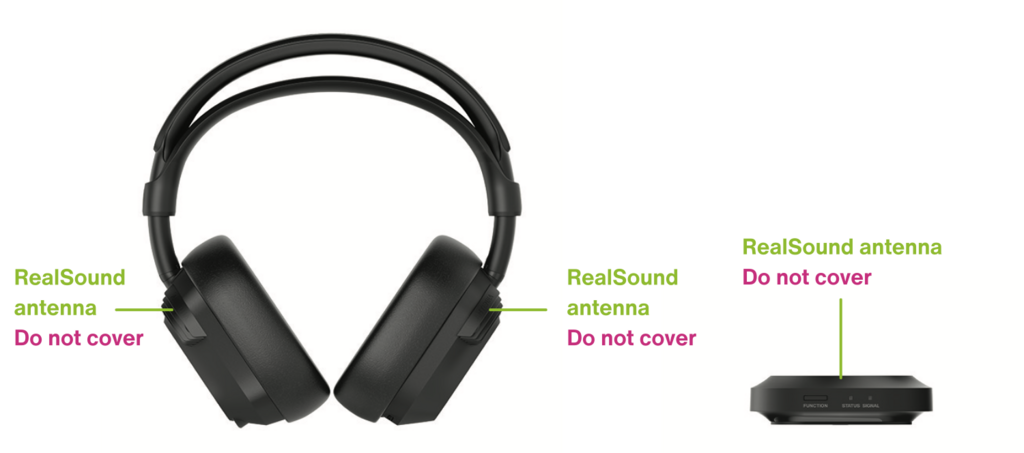
      RealSound Wireless Technology by LEWITT enables ultra-low latency wireless transmission of uncompressed audio. This is made possible via antennas on the LW6 Wireless Studio Headphones and LW TX transmitter operating with ultra-wideband (UWB). 

      LEWITT LW6 RealSound antennas

      USB audio

      1. Connect the transmitter to your computer via the USB-C cable.
      2. Select "LEWITT LW TX" as your output audio device on your computer.
      3. Turn on the headphones and enjoy uncompressed wireless audio.


      Analog input

      1. Connect the transmitter to a computer or other power source via USB-C cable.
      2. Connect your audio source to the transmitter's analog input.
      3. Turn on the headphones and enjoy uncompressed wireless audio.

      Once you connect a cable to the analog input, the transmitter prioritizes it over USB.


      Please note

      • The RealSound Wireless Technology works within a range of around 5 m.
      • Do not cover the antennas on the headphones and transmitter for a stable signal.
      • Obstacles between the headphones and transmitter may cause dropouts.
      • For a reliable connection, the transmitter is best placed on a desk.
        It must not be positioned in a place higher than the headphone antennas.
      • If you install the transmitter on the ceiling, mount it upside down.
      • Find out how stable your signal is in the LEWITT HEADPHONES software.
    • Setup Bluetooth

      Switch between RealSound and Bluetooth

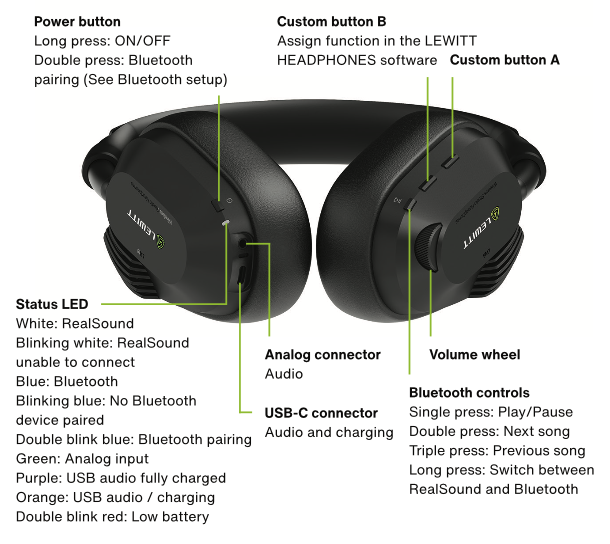
      You can switch between RealSound and Bluetooth setup by long-pressing the Bluetooth controls button or via the LEWITT HEADPHONES software.

      Bluetooth pairing

      To enter Bluetooth pairing, double-press the power button. Now you can use the Bluetooth controls in connection with your paired device. For Bluetooth operation, the transmitter is not needed.

      LW6 user interface

      Bluetooth setup on LEWITT LW6
       

    • Wired via USB-C/Analog

      Connect the headphones directly via USB-C or a 3.5 mm analog cable to your audio source.

      In this setup, the transmitter is not needed.

    • DSP features

      • Full control via app or desktop software
      • Create custom EQ sound profiles and store them directly on the headphones
      • Activate virtual studio monitors for natural stereo field
      • Loudness guard protects your ears from high-level peaks
      • Advanced monitoring like Mono, L-R-Swap, and more

      To create your own sound profiles, set your loudness guard, and access all features, please download the LEWITT HEADPHONES software, available for PC and Mac, iOS and Android.

      You can assign any function for quick access to one of the custom buttons via the software. 

    • RealSound wireless profile & RealSound multi-unit mode

      RealSound wireless profile


      Please note that RealSound wireless profile has no impact on audio quality or latency and is only available in North America.

      Default (best for most setups)
      Use this mode for optimal wireless performance.

      Extended range (6 GHz Wi-Fi may interfere)
      You can extend the range of the wireless signal slightly with the Extended range mode. Please note that 6Ghz Wi-Fi signal may interfere. If you experience dropouts with this mode, switch back to Default. 

      RealSound multi-unit mode


      RealSound multi-unit mode lets you use two LW6 with two transmitters in the same room. Both units deliver full audio quality at no increase in latency.

      To activate RealSound multi-unit mode, enable it in the settings menu for the two LW6s you want to use.


    • How to replace the cushions/ear pads

      If you need to replace the ear cushion for LW6, follow these steps: 

      1. To detach the ear cushion, gently pull it starting from the top corner. 
      2. Pull it gently inwards and release the hooks one by one. 
      3. When attaching, start from the top corner. 
      4. Push the ear cushion gently from the inside out. 
      5. You can feel the hooks snap in. 
      6. Make sure the ear cushion sits tight.  

    You can learn more about your product, download files, and check specs.

    Need help?

    Contact us

    Write an email or send us a direct message

    Contact us

    Blog and reviews

    Learn and get inspired.

    Facebook icon YouTube icon Instagram icon zoom-icon